
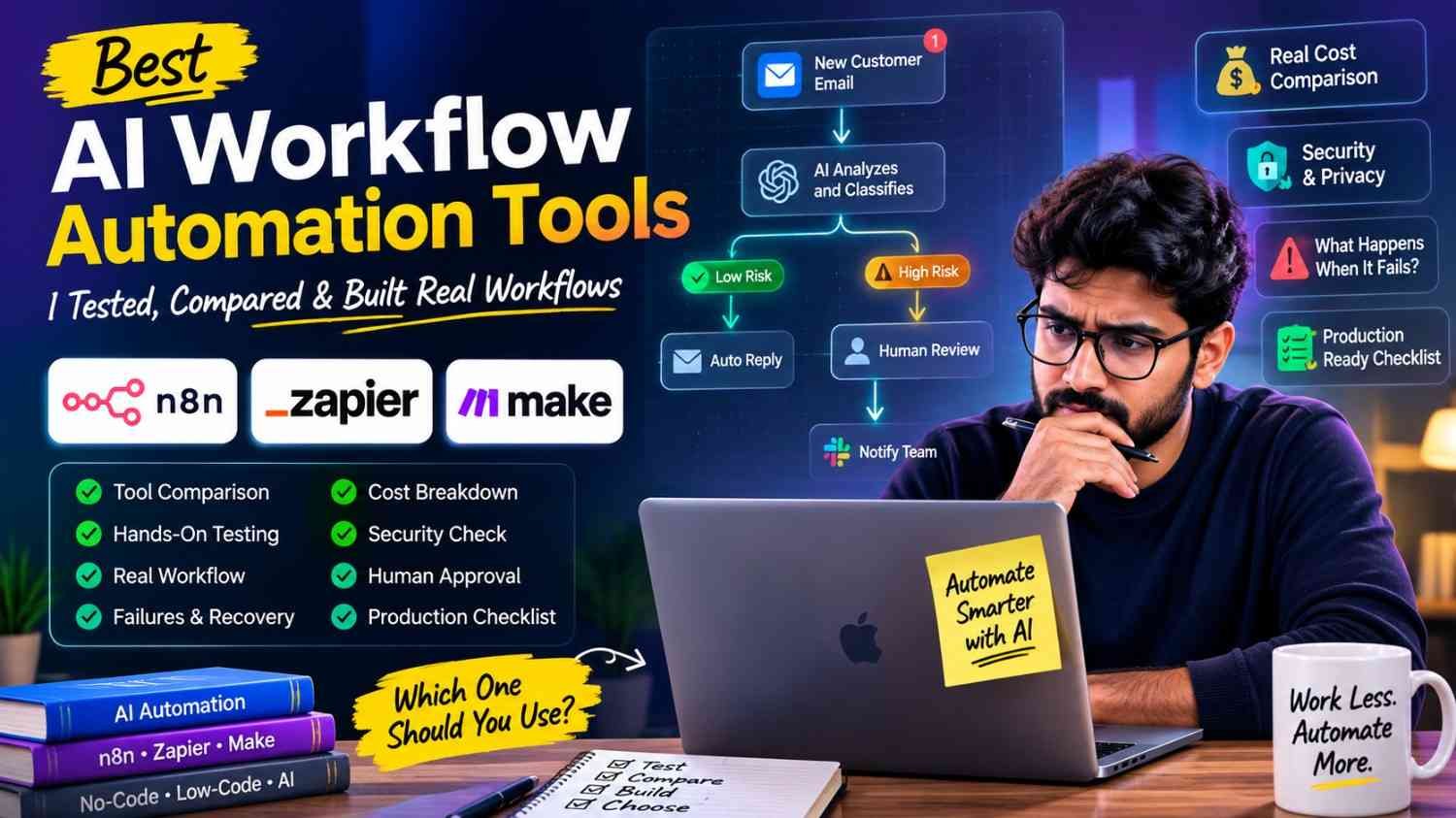
AI workflow automation tools help you connect apps, move data, ask AI to understand something, then do the next work without you clicking every time. Simple idea. But real work is not always simple.
I see many “best AI workflow automation tools” posts showing features, logos, pricing, then giving winner. That is useful little bit. Still, it miss the hard part. A tool can look very nice in demo. You connect Gmail, add AI step, send result to Slack, done. Looks perfect.
Then real users come.
One email have missing data. Another API stop working. AI gives strange output. Login token expire. Workflow runs twice. Cost slowly go up. Now that beautiful demo become a problem you need fix.
So in this comparison, I don’t want only look at feature list. I want see how these tools behave when work become messy.
I will judge each tool by setup difficulty, AI features, integrations, workflow control, reliability, error handling, human approval, security, debugging, cost, and production readiness.
What is an AI workflow automation tool? It is software that connects your apps, rules, data, and AI models to finish repeat work with less manual effort.
We will build one practical workflow across multiple tools, break it in few places, recover it, and see which one still feel useful after the easy demo is over.
Quick Answer — Which AI Workflow Automation Tool Is Best?
If you want one quick answer, n8n is my best overall pick for AI workflow automation tools. Not because it is easiest. It is not. I like it because you get much more control when a small automation slowly becomes a serious business workflow. n8n supports self-hosting, custom logic, APIs, AI agents, and more than 1,000 integrations.
But your case may be very different.
| Your need | My pick |
|---|---|
| Best overall | n8n |
| Beginner friendly | Zapier |
| Visual workflow building | Make |
| Developers | n8n |
| Simple business tasks | Zapier |
| Complex branching | Make / n8n |
| Self-hosting | n8n |
| Easy team adoption | Zapier |
I would put Zapier in front of a beginner first. You can connect more than 9,000 apps and build many workflows without coding. That removes a lot of early headache.
Make feels different. You see the workflow like a map. Modules, routes, data moving here and there. This is useful when a workflow has many branches. Make currently promotes more than 3,000 pre-built app connections and its visual-first builder.
Still, do not pick a tool only because somebody says “best.”
I learned this problem fast: the easy tool today may become painful when your workflow grows.
Look at your workflow size, monthly runs, technical skill, security needs, errors you may face, and control you want. Then choose.
For a simple Gmail-to-CRM automation, Zapier may be enough. For a visual sales process with many routes, I would look at Make. When APIs, custom code, private hosting, and deeper control enter the picture, I would start with n8n.
How I Tested These AI Workflow Automation Tools
I did not want test these AI workflow automation tools by only opening home page, checking features, and saying this one is best. That tells very little. A workflow looks nice until something breaks.
So I kept my main test around n8n, Zapier, and Make. These three let you build AI-based workflows, but they don’t feel same when you actually start joining steps, changing data, adding conditions, and fixing errors. n8n also supports human-in-the-loop control, Zapier can pause a workflow for human review, and Make is pushing visual AI and agent workflows where users can see how work moves through the system.
I also looked around Pipedream, Microsoft Power Automate, and Activepieces, but I kept them secondary. Otherwise this test becomes too wide and not much useful.
What I checked
I scored the tools around things I would care about after real work starts:
- How hard first setup feels
- AI model connection
- Branching and conditional logic
- API freedom
- Human approval
- Error handling
- Debugging
- Execution logs
- Security controls
- Scaling
- Cost predictability
- Maintenance work
Human approval became more important than I first thought. AI can draft or classify something fine, then one strange input comes and result goes wrong. Both n8n and Zapier now openly describe human review as a control point before important actions continue.
I tried to keep the test fair
Same workflow logic. Same input data. Same expected result. Same AI model where platform allowed it. I repeated the same failure cases too.
That part mattered.
A tool can look fast when everything is clean. Real test starts when API fails, data is missing, AI gives bad structure, or somebody needs to approve one step.
That is where I started seeing the actual difference between these tools.
The Real Workflow Used for Testing
For testing AI workflow automation tools, I did not want some fake workflow which only move one row from Google Sheet to another place. That kind demo looks nice, but real business work is more messy.
So I used one AI-powered customer support workflow.
Workflow Scenario
Imagine customer send email like this:
“My payment went two times but order still showing pending. I need this fixed today.”
Simple mail. But inside this one mail, many things happening.
First workflow catch the new support email or form submission. Then message goes to the language model. I ask it not just “understand this mail.” That is too loose. I need clear things back.
It should find:
- customer intent
- urgency level
- customer name
- product or service
- main issue
- suggested reply
- whether human person should check it
Then routing starts.
If mail looks normal, like password help or basic product question, workflow can prepare reply and update helpdesk automatically.
But payment issue, refund, angry customer, account closing, security issue? I don’t like machine taking final action there. It goes to human review.
The basic flow looks like this:
New Email/Form → Read Message → Find Intent → Check Urgency → Extract Details → Make Reply → Risk Check → Human Review or Auto Process → Update CRM → Notify Team → Save Log
I learned one thing while building flows like this. The nice part is never the first trigger. Trouble comes in middle. Customer may write broken sentence. Product name missing. Model may return wrong field. API may stop. Same email may enter twice.
That is why this workflow is useful for testing AI workflow automation tools.
Why This Workflow Is a Good Test
It makes the tool show its real strength, not marketing page strength.
We can see whether it handle AI classification, structured output, branching, API integrations, human-in-the-loop approval, data handling, error recovery, logging, and cost per run.
You also see one important thing very fast: can you fix the workflow when something goes wrong?
For me, that question matters more than how pretty the automation screen looks.
Tool Comparison at a Glance
When I first looked at n8n vs Zapier vs Make, all three feels almost same. Connect apps, move data, add AI, done. But after workflow become bigger, difference starts showing very fast. One tool feels easy today, then painful after 50 more steps.
| Feature | n8n | Zapier | Make |
|---|---|---|---|
| Beginner friendliness | Medium | Excellent | Good |
| AI capabilities | Excellent | Excellent | Excellent |
| Visual builder | Very good | Easy, simple | Excellent |
| Advanced branching | Excellent | Good | Excellent |
| Custom code | Excellent | Good | Good |
| API flexibility | Excellent | Very good | Excellent |
| Self-hosting | Yes | No | No |
| Human approval | Very good | Excellent | Good |
| Debugging | Excellent | Good | Very good |
| Error handling | Excellent | Good | Excellent |
| Security controls | Strong | Strong | Strong |
| Cost at scale | Good with right setup | Can rise with many tasks | Usually easier to control |
| Best for | Developers, complex workflows | Beginners, business teams | Visual and complex automation |
n8n gives me more feeling of “I control this thing.” It supports self-hosting, webhooks, AI nodes and deeper technical workflow building. That power also mean more things you must understand yourself.
Zapier feels quickest when you just want work moving. Its built-in Human in the Loop can pause a Zap and wait for approval before continuing, which I like for refunds, publishing, or customer-facing actions.
Make sits little different. Its visual canvas make branching easier to see, and its error handlers can catch a failed module instead of killing whole scenario.
One mistake I made earlier was counting features. More boxes does not mean better production workflow. Real question is ugly one: when API fails at 2 AM, can you find the broken step, recover data, stop duplicate actions, and know what it cost?
That is where an AI workflow automation tool actually proves its value.
n8n Hands-On Test
I wanted to see n8n as real AI workflow automation tool, not just looking at nice workflow screenshots. So I made one customer support flow and pushed few problems inside it too. Because normal workflow working once is easy. Real issue starts when strange data comes.
Building the Workflow
I started with webhook trigger. Customer message enters there. Then connected AI model for reading message and returning simple fields like intent, priority, summary, and suggested_action.
Here first trouble came. AI can give beautiful answer, but next node don’t care beauty. It needs correct data. So structured output became important. I kept fixed fields and checked them before moving further.
Then I added conditions.
If request is normal, workflow continue. If message looks risky, refund related, account change, or model confidence is poor, it goes another road.
CRM update came through normal integration/API call. For service where ready node was not enough, HTTP request gave more control. This is one place I liked n8n. You are not fully trapped inside prepared actions.
After CRM update, notification goes to team.
For risky action, I did not want machine doing everything. n8n now supports human approval before an AI Agent uses selected tools. Workflow can pause, wait for approval, then continue. That is useful for actions where one bad click can become customer problem.
What Worked Well
Flexibility was biggest good part for me.
You can mix visual nodes, API calls, conditions and code. The Code node also supports debugging methods such as console.log, which helped when data changed shape somewhere middle of flow.
Execution visibility also helped. When one step broke, I could look closer instead of guessing whole workflow.
Self-hosting is another big reason technical teams may choose n8n. You get more infrastructure control, but that freedom brings your own work also.
Where n8n Struggled
This is not always “click three buttons and finished.”
Expressions, JSON, APIs, credentials, server setup, Docker, database, backups—slowly these things can enter your day.
Self-hosting especially needs care. Even n8n documentation covers server logging and memory problems because production systems can face these issues.
Another thing I noticed: big workflow becomes spaghetti fast. Twenty clean nodes feels nice. Eighty nodes with many branches? Your eyes start searching everywhere.
So break big flow into smaller workflows. Name nodes properly. Log important failures. Don’t wait until production becomes puzzle.
Best For
I would put n8n mostly for developers, technical teams, complex automation, API-heavy workflows, and companies wanting more infrastructure control.
If you want only quickest setup, maybe it feels heavy.
But when your workflow says, “I need this strange condition, custom API call, approval here, code there, and my own server,” n8n starts making much more sense.
Zapier Hands-On Test
Zapier feels less scary when you open it first time. You choose trigger, pick action, connect account, test the data, then keep moving. That simple style is probably its biggest power.
Building the Same Workflow
For my test idea, I used the same customer support flow: new customer message comes in → check the message with AI → decide issue type → send normal requests forward → move risky cases for human review → update another business app.
Building this kind of basic flow in Zapier is quite fast. You don’t need to first understand servers, APIs, or much coding. Trigger and action steps guide you one by one.
And integration choice is huge. Zapier currently says it connects with 9,000+ apps. So when your company already uses Gmail, Slack, Salesforce, Google Sheets, forms, CRM tools, and many other SaaS apps, there is good chance you find something ready.
What Worked Well
I liked how little thinking needed for normal workflow setup. That matters. A marketing person may not want to become developer just for moving leads from one place to another.
Branching also got better. Zapier’s Paths can send data into different branches based on conditions, and its newer visual editor lets you see those branches together instead of only reading one long line of steps.
For common business work, this is nice.
Lead comes → check → qualify → CRM → Slack alert.
Done.
No big drama.
Limitations I Noticed
But simple feeling starts changing when workflow becomes big.
Many conditions. Several Paths. AI step. Formatter. API call. Another filter. Retry idea. More branches.
Now you need careful naming, otherwise tomorrow even you may stare at your Zap and ask, “Why I made this step?”
Zapier can handle branching, including fallback and sequential Path behavior, but developer-focused platforms can still feel more natural when you want deeper control over unusual processing.
Cost also needs watching. Zapier counts successful actions as tasks, and the Free plan currently includes 100 tasks per month. A workflow with many actions running thousands times can therefore need proper task calculation before launch.
Best For
I would pick Zapier first for beginners, marketing teams, small businesses, and non-technical users who want useful automation running quickly without building too much technical machinery.
Make Hands-On Test
Building the Workflow
Make feels different when you first open its scenario builder. You see apps like small circles, joined with lines. At first, I liked this. My brain can follow a picture faster than a long settings page.
For this test, I built a simple customer support flow. New message comes in. Then AI reads it, finds the issue, checks urgency, and sends the request into different paths. Make’s routers and filters are useful here. One route can handle normal questions, another can send refund or angry customer messages toward human review. This visual routing is one reason people use Make for more complex work.
Data mapping also felt strong. I could take one field from an earlier module and push it into another app without writing much code. But you must watch the data carefully. One wrong mapped field, and later modules may work with wrong information.
What Worked Well
I liked Make most when the workflow had many decisions.
You can see the path. You can almost read the business process from left to right.
Filters give more control. Routers split the work. Data can be changed before it reaches the next app. For operations teams, this is useful because real office work is rarely one straight line.
There is also a nice middle ground here. You can build plenty without code, but still go deeper when the flow demands it.
Where Make Struggled
The pretty map can slowly become a mess.
I noticed this after adding more routes. Lines cross. Modules spread wide. Then debugging becomes less fun. Make community users mention the same problem: large scenarios can become hard to read, and splitting work into smaller sub-scenarios is one way to control it.
Cost also need watching. Make says module actions consume credits, so a workflow with many steps can use more credits than a small-looking flow suggests.
My fix is simple: name filters clearly, keep routes small, test one branch at a time, and break giant scenarios into smaller pieces.
Best For
Make fits visual thinkers, operations teams, complex no-code automation, and people who need strong routing but do not want heavy programming.
The Failure Tests — What Happened When Things Broke?
Building an AI workflow is easy when every input behave nice. Real trouble starts when one small thing goes wrong.
And it will.
So I care more about how AI workflow automation tools fail than how pretty their builder looks.
Failure Test 1 — AI Returned Invalid JSON
This one looks small. It is not.
Suppose AI should return:
{"intent":"refund","priority":"high"}
But one run gives normal text, missing field, or broken JSON. The next CRM step expects intent. Nothing comes. Workflow stops there.
This is why I never like sending raw AI text straight into business actions.
The safer route was simple: force structured output, check required fields, then keep one fallback parser. If data still looks bad, send that item into retry or human review. Do not silently guess.
Failure Test 2 — API Said “429 Too Many Requests”
Now workflow works fine for ten records. Then 500 arrive close together.
Bang. HTTP 429.
n8n documents a “Retry On Fail” option with waiting between requests when a service returns 429. Make can automatically rerun rate-limited incomplete executions with increasing wait periods. Zapier also recommends delaying calls or using retries; its webhook documentation specifically recommends exponential backoff when delivery fails.
So throwing requests faster is not solution.
I would use delay + exponential backoff + queue. Let jobs wait instead of hitting API again and again.
Failure Test 3 — Same Trigger Came Twice
This is more dangerous than error message.
Webhook fires twice. Same customer enters twice. Maybe two CRM records. Maybe two emails. Worse, two refunds.
Before any important action, save a unique event ID. Check it.
Already processed? Stop.
That small deduplication and idempotency check can save a very ugly day.
Failure Test 4 — Authentication Expired
OAuth token expired and suddenly a healthy workflow becomes dead.
What matters here is visibility. Can you see failed step? Can somebody get alert? Can failed records run again after login fixed?
Zapier allows failed tasks to be replayed and offers Autoreplay for some temporary failures. Make can keep failed work as incomplete executions for later resolution.
I would never depend only on dashboard. Send failure alert to email or Slack too.
Failure Test 5 — AI Was Confident, But Wrong
This is the scary failure because nothing technically breaks.
Customer writes, “I want my money back.”
AI labels it general question.
Workflow runs perfectly. Wrong result.
So high-risk words like refund, cancel, payment, delete, legal should get extra rules. Add confidence threshold. Route doubtful cases to a person.
Because good automation is not one that never stops.
Good automation knows when it should stop itself and ask a human.
Recovery and Error Handling Comparison
A workflow looks easy when everything go right. Real pain start when one API stop, login token expire, or one customer record come with strange data. I faced this kind of thing many time. One failed step can leave half work done, and you may not even know it.
n8n gives more control for fixing these troubles. You can create an error workflow, use Retry on Fail, inspect execution data, and trace where a node broke. This is useful when workflow have many branches and API calls. But yes, beginner may need some time to understand all those execution details.
Zapier feels more simple. In Zap History, failed tasks can be replayed manually, while Autoreplay can retry some temporary failures automatically. Zapier also supports custom error handling. For a new user, this feels less scary because failed runs are shown in one familiar place.
Make surprised me more in recovery side. Its incomplete executions can keep failed work and restart from the module where trouble happened. For supported errors such as connection, timeout, and rate-limit problems, automatic retry can use delayed attempts instead of blindly running again.
| Need | My Pick |
|---|---|
| Best for debugging | n8n |
| Best for recovery | Make |
| Best for beginners fixing failures | Zapier |
At 20 runs, one failure feels small. At thousands of runs, same small fault become missing orders, duplicate records, angry customers, and hours of cleanup. So I never judge automation only by “Did it run?” I also ask, “When it breaks, how fast can we see it, fix it, and continue without damaging old work?”
Human-in-the-Loop Approval — When AI Should Not Act Alone
Full automation sounds nice until money, customer account, or company name is involved. Then one wrong step is not small thing. I prefer AI workflow automation tools to do the boring work fast, but stop when decision can hurt someone or business.
Actions That Should Usually Require Human Approval
Refunds are good example. A support workflow may understand, “customer wants refund,” but it does not know every hidden problem behind that order. Same with payments, deleting account, legal messages, employee termination decisions, expensive purchases, changing important customer records, publishing public content, or sending private information.
I would never give these actions a free road.
The workflow can prepare everything. Human gives last yes.
That small pause can save a very big mess.
How I Would Handle Approval in a Real Workflow
In my tested customer-support flow, I make the AI return three simple things:
- Intent: What customer wants.
- Confidence score: How sure the system is.
- Suggested action: What should happen next.
Then I use rules.
95%+ confidence + low-risk request: continue automatically.
Below 95% confidence: send for human review.
High-risk action: always stop for approval, even confidence says 99%.
That 95% number is not some magic industry rule. It is only a starting threshold. Your own error data should decide the real limit.
Human Approval: n8n vs Zapier vs Make
Zapier now has a built-in Human in the Loop step. It can pause a Zap and ask reviewers to approve, decline, or change submitted data. Notifications can go through email or Slack before the workflow moves ahead.
n8n also supports human approval before an AI Agent uses selected tools. Its current documentation shows approval channels including Slack and other messaging options, while the workflow pauses until the review comes back.
Make takes a more workflow-building approach. Its own HITL example shows a deal pausing at an exception point, then sending Slack details with approve or request changes choices.
My rule is simple: let automation prepare the decision; let a person own the dangerous decision.
Security and Privacy Comparison
Security looks boring until your workflow starts carrying real customer data. Then suddenly it is not small thing.
Data Passing Through the Workflow
Think about one simple support automation. Customer sends email. The trigger app catches it, automation tool reads it, an AI provider may analyze the message, CRM gets customer details, database saves result, and Slack or another messaging app alerts your team.
So data did not stay in one place. It travelled.
This is where I feel people make one common mistake. They ask, “Is this AI workflow automation tool secure?” But better question is, where exactly is my data going, and who can touch it?
A customer email may contain phone number, order ID, address, payment issue, or private company details. AI does not need all those fields for every task. Remove what it does not need.
Security Features I Would Check First
Do not get impressed only because vendor page says “enterprise security.”
Look deeper.
Check encryption, OAuth, secrets storage, role-based access, SSO, audit logs, data retention, hosting region, self-hosting, and user permissions.
For example, n8n says credentials stored in its database are encrypted and recommends OAuth when supported. Its Enterprise offering includes SSO options, while paid plans provide advanced role controls. n8n also gives a self-hosting route for teams needing more infrastructure control.
Zapier provides audit logging and SAML SSO for supported team and enterprise setups. Enterprise users can also configure Zap history retention between 7 and 30 days.
Make states it uses AES-256 encryption at rest and TLS 1.2/1.3 while data travels.
Practical Security Rules
My rule is simple: give every workflow less power than it wants.
- Send only needed fields to the model.
- Remove private data before sending when possible.
- Never paste API keys inside workflow text.
- Use OAuth or secure credential storage.
- Give each connection minimum permission.
- Put human approval before refunds, deletion, payment, or major account changes.
- Keep audit logs.
- Review old integrations. Remove ones nobody use.
One forgotten connection can become bigger problem than the AI itself. Security in automation is not one button. It is small careful choices, again and again.
Real Cost Comparison — What Happens at Scale?
Price page can fool you little. You see “$20/month” and think, fine, cheap. But real AI workflow automation cost start showing when workflow runs again, again, and again.
I learned one thing here: count the work, not only subscription.
Take one normal customer-support workflow. Maybe it has 8 useful actions and one AI call. Make counts module actions as credits. Zapier normally counts each successful action as a task, while some built-in steps like Filters, Formatter and Paths don’t use tasks. n8n is different; its cloud pricing counts full workflow executions, even when workflow has many steps.
Here is how scale can suddenly look:
| Monthly workflow runs | 8-step usage estimate | AI calls |
|---|---|---|
| 1,000 | ~8,000 tasks/credits | 1,000 |
| 10,000 | ~80,000 | 10,000 |
| 100,000 | ~800,000 | 100,000 |
That 100,000 number is where I would stop and check everything.
Make currently shows 10,000-credit Pro at $21/month, while n8n shows Pro at €50/month billed annually for 10,000 executions with unlimited steps. Zapier Professional starts at $19.99/month, but your needed task tier changes with usage.
AI cost sits on top sometimes. Suppose each run sends 1,200 input tokens and gets 250 output tokens using GPT-5 mini. At its current API rates of $0.25 per million input tokens and $2 per million output tokens, AI model cost is roughly $0.80 per 1,000 runs, $8 per 10,000, and $80 per 100,000 runs.
But hidden money goes elsewhere.
Retries can run steps again. Loops may turn one customer order into 20 actions. Premium apps need paid plans. Zapier also changed AI-by-Zapier pricing in June 2026; model tiers can use 1x, 3x, or 5x task rates.
Self-hosted n8n may cut SaaS usage cost, yes. Then server, backups, updates, monitoring and your DevOps time enters the bill.
So I use one simple number:
Cost per successful workflow run = total monthly platform + AI + hosting + maintenance cost ÷ successful completed runs.
That number tells much more truth than “starts at $19.99.”
Performance and Production Readiness
A workflow running one time is not meaning it ready for real business. I learned this little painful way. Test workflow looks clean. Then real users come, more records come, API becomes slow, one login token expires, and suddenly small automation becomes big headache.
Execution speed matter, yes. But speed alone not enough. One 2026 small-business study tested an n8n lead workflow and found automated runs averaged 1.23 seconds, compared with 185.35 seconds manually. Good result, but that test was small scale, so I would not take it as proof every large workflow run same fast.
When your AI workflow automation tools start handling hundreds or thousands jobs, watch few things very close:
- Logging: Can you see exactly where one execution failed?
- Monitoring: Will somebody know failure happened, or customer tells you first?
- Version control: Can old working workflow come back after bad change?
- Testing: Try wrong data also. Empty field. Slow API. Invalid AI reply.
- Environment separation: Please don’t test new idea directly in production. I did similar mistakes before in automation work. Small edit can touch real data.
- Rollback: Keep previous stable workflow ready.
- Collaboration: Team should know who changed what and why.
For larger n8n workloads, its official docs say queue mode provides the best scalability, using workers that can be added or removed as demand changes. n8n also supports Git-based source control with separate environments, useful when development and production should not mix.
One recent study of more than 6,000 public n8n workflows found proper fallback paths, repair loops, failure alerts, and human approval gates still not common. That part worry me more than speed.
Production readiness means this: when something breaks at 2 AM, can your system notice it, contain it, recover it, and tell the right person?
Which AI Workflow Automation Tool Should You Choose?
Picking AI workflow automation tools is little confusing. I faced same thinking many times. One tool looks easy today, but after your workflow grow, suddenly it feels small. So I don’t look only at “how many apps it connect.” I first ask: what is the hardest automation I may build six months later?
Choose Zapier If…
Choose Zapier when you want work start fast, without fighting with code. It is good for marketing people, bloggers, sales teams, and small businesses doing simple jobs like Gmail → Google Sheets → Slack.
Zapier says coding is not required and currently supports 9,000+ app integrations. That large app choice is useful when your business already uses many SaaS tools.
But watch usage. Since June 15, 2026, some AI by Zapier steps can use different numbers of tasks depending on selected model tier. Small workflow looks cheap; many runs can become another story.
Choose Make If…
I like Make when workflow need many roads.
You can see modules, routers, filters, and connections almost like drawing process on paper. Make currently lists 3,000+ apps, with routers and filters available in its visual builder.
If your order goes one way, failed payment another way, VIP customer another way—this visual style makes sense.
Still, big scenarios can become messy. Your eyes start travelling everywhere. Naming modules properly helped me more than expected.
Choose n8n If…
Pick n8n when you want deeper control.
It suits developers, API-heavy work, custom logic, AI workflows, and teams wanting self-hosting options. n8n positions itself for technical teams, and its pricing is based on workflow executions rather than workflow complexity.
My simple rule is this:
Don’t choose because one tool has biggest integration number. Choose the tool that can survive your hardest workflow, failure, retry, growth, and maintenance without making your team hate it.
Production Checklist Before You Launch Any AI Workflow
AI workflow working one time does not mean it ready for real people. I learned this point little hard way. Test screen looks green, data moving good, then one expired login or strange customer input come and whole flow stop.
Before launch, first write the exact trigger, input, and output. Very simple thing, but many workflow problems start here. If email is trigger, what email? Any email, only support email, attachment email? Small unclear rule later become big mess.
Then break your own workflow before users break it.
- [ ] Test empty fields, wrong formats, missing files, and very long text.
- [ ] Force the model to give wrong or incomplete structured data.
- [ ] Stop an API and see what happens.
- [ ] Test expired OAuth or API key.
- [ ] Test rate limits and timeouts.
- [ ] Send same event twice.
- [ ] Check retry does not create two orders, tickets, emails, or payments.
That duplicate problem is not small. Stripe, for example, recommends idempotency keys so failed network requests can be retried without performing the same action again.
I also never trust model output only because it “looks right.” Validate fields before next step touch CRM, database, payment, or customer account. OWASP lists improper output handling, prompt injection, sensitive-information disclosure, and excessive agency among important LLM application risks.
For risky actions, put a human in middle. Refund, deletion, legal message, money movement, account permission—these should not fly only because confidence score says 96%. NIST’s AI Risk Management Framework also places human oversight, defined responsibility, monitoring, and risk management around AI systems.
Before production, I want four boring things working: logs, alerts, fallback, recovery.
Know who owns the workflow. Keep versions. Protect secrets. Give only needed permissions. Count cost per successful run, not only monthly plan price. Test your expected monthly volume.
And one last question I ask: If this workflow fails at 2 AM, can another person understand what happened and recover it without calling the person who built it?
If answer is no, workflow still not production ready.
Common Mistakes to Avoid
Many people start AI workflow automation too fast. I did same thing before. We see one nice tool, build five steps, then ten, then twenty. After few days nobody know why one step is there.
First mistake is automating a bad process. If your manual work already confusing, automation only make confusion faster. Fix the process first. Then automate.
Another mistake, using AI for every small thing. Some jobs need only a simple rule. If email subject has “refund,” maybe you don’t need a smart model to understand that. Simple condition is cheaper, easier, and more stable.
Permissions also matter. Never give one automation full access just because setup become easy. Give only what it really need.
Failures will happen. API can stop, login token can expire, output can come wrong. So keep retry, error message, backup path, and human check.
I also don’t trust model output blindly. Check fields before sending data into CRM, payment system, or customer email.
Few more things people forget:
- Test bad inputs, not only good ones.
- Watch task and token cost.
- Break giant workflows into small parts.
- Write simple notes about every important step.
- Give one person ownership.
- Keep human approval for money, deletion, legal, or risky actions.
And don’t pick an AI workflow automation tool only because everybody online talking about it. Your workflow, your team, your cost. Those should decide.
Frequently Asked Questions
What is the best AI workflow automation tool?
There is no one tool which wins for everyone. I learned this little hard way. A simple workflow may feel perfect in Zapier, but when branching, API calls, custom logic, and many conditions enter, you may want more control.
For beginners, Zapier is usually easier because you can connect apps and build workflows without coding. Zapier says its platform now supports more than 9,000 app integrations.
For technical users, I prefer looking closely at n8n. You get deeper workflow control, custom logic, API work, AI steps, and self-hosting choices.
For people who understand things better by seeing them, Make is interesting. Its visual scenario builder shows actions and routes like a map. Make also describes its platform as no-code automation for AI and agentic workflows.
Is n8n better than Zapier?
Depends what “better” means.
Zapier feels simpler. Connect Gmail, Sheets, CRM, Slack, then move ahead. Less headache at beginning.
n8n gives more freedom when your workflow becomes messy. APIs, conditions, custom data, code, AI agents, loops. This freedom is nice, but you also carry more thinking.
So my rule is simple: Zapier for easy setup; n8n when control becomes important.
Is Make better than Zapier for AI automation?
Sometimes, yes.
Make helps when you need several routes and want to visually see where data moves. Zapier may feel cleaner for smaller automations.
But visual does not always mean easy. I have seen workflow diagrams become like electric wiring once too many routers and modules come in.
Make counts module actions as credits, so complicated scenarios can also use more credits than expected.
Can AI workflow automation work without coding?
Yes. You can make many useful workflows without touching code.
Zapier promotes no-code AI workflows, and Make offers visual no-code automation. Even n8n added an AI Workflow Builder that can create and refine workflows from normal language descriptions.
Still, code becomes useful when APIs behave strangely or your data needs special cleaning.
Are AI workflow automation tools secure?
They can be secure, but your setup matters much more than the shiny security page.
Think about where your customer data travels: email → automation tool → AI model → CRM → maybe Slack.
Every stop matters.
Check permissions, API keys, user roles, data retention, encryption, audit logs, and what information you send to the AI model. Make, for example, states it supports SOC 2 Type II, SOC 3, GDPR-related controls, encryption, and SSO.
Never give an automation more access than it really needs.
How much does AI workflow automation cost?
This one tricks people.
You may pay for the automation platform, workflow runs or operations, AI model usage, hosting, storage, and somebody maintaining the whole thing.
And pricing rules change. Zapier, for example, changed AI by Zapier pricing on June 15, 2026, where selected model tiers affect how many tasks an AI step consumes.
So don’t only ask, “What is monthly plan?”
Ask: What will 10,000 successful workflow runs actually cost me?
That question is much better.
Can AI workflows run without human approval?
Yes. But should they?
For summarizing a meeting, probably fine.
Sending a refund? Deleting customer records? Publishing something publicly? Different story.
Put a human between the AI decision and dangerous action. n8n, for example, now documents human approval before an AI agent is allowed to execute selected tools.
What happens when an AI automation fails?
Something will fail one day. API timeout. Bad JSON. Wrong password. Rate limit. Strange AI answer.
Build for that day.
Keep logs. Add retries. Add fallback paths. Send alerts. Save original input. And keep one manual method to finish the job when automation refuses to behave.
What is the difference between an AI agent and an AI workflow?
An AI workflow normally follows steps you already designed.
An AI agent gets more freedom to decide what tool or next action should be used.
More freedom can solve harder tasks. It can also create more surprise.
I use fixed workflow logic whenever the job is predictable. Agent only where real judgment is needed.
Should I use AI for every automation?
No.
This is maybe the most useful answer here.
If your rule is:
Invoice total > $5,000 → send manager approval
you don’t need an AI model thinking about it.
Simple rules are often faster, cheaper, and easier to debug.
Use AI where language, messy documents, classification, summarizing, or judgment is involved. Use normal workflow rules for things the computer already knows exactly how to decide.
That balance usually creates a workflow you can actually live with, not only a cool demo.
Final Verdict
After testing and looking at these AI workflow automation tools, I feel one thing very clear. There is no single winner for every person.
If you want simple setup, Zapier is easier. You can connect apps fast, make basic flows, and move on. For small teams, this peace matters. Less headache.
Make feels different. You see the workflow in front of your eyes. Routes, filters, branches, data moving here and there. When your work becomes little complex, this visual style helps a lot. But big scenarios can also become messy, I have seen that problem many times.
n8n gives more control. Very useful when you need APIs, custom logic, code, self-hosting, deeper error handling. But yes, you need more technical mind. It is not always “click and done.”
The real test is not your first successful run.
Your workflow may look perfect today. Then API fails tomorrow. Token expires. AI gives wrong output. Costs slowly grow. Nobody knows how to fix it.
So choose the tool your team can understand, repair, secure, and afford.
Do not judge AI workflow automation tools by a shiny demo. Judge them after 1,000 real runs, failures included. That is where the real winner comes out.
