

If you search for Cursor AI, you want a faster way to write, fix, and understand code. Cursor AI gives you that inside one editor, so you spend less time switching between tools.
What Is Cursor AI?
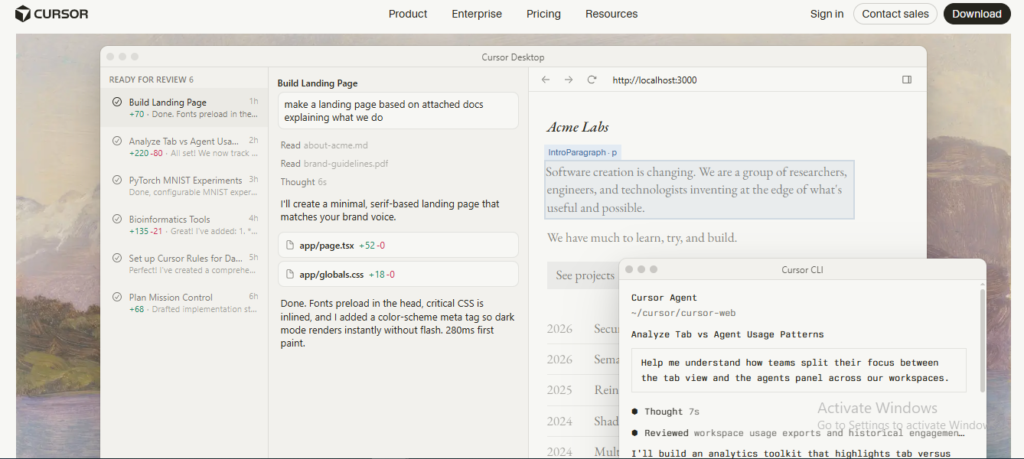
Cursor is an AI-first code editor built on the familiar Visual Studio Code (VS Code) foundation. That means you can keep using many VS Code extensions and shortcuts while getting AI help built directly into your coding workspace.
Unlike a normal coding assistant, Cursor understands your whole project before suggesting changes. So, you can ask it to explain code, create new files, fix bugs, or update many files with one simple prompt.
The editor comes from Anysphere, a startup founded in the United States in 2022 by four MIT students: Michael Truell, Aman Sanger, Sualeh Asif, and Arvid Lunnemark. They launched Cursor publicly in 2023, and it quickly became one of the fastest-growing AI coding tools.
You can use Cursor whether you are learning programming or building large software projects. It works with leading AI models like Claude, GPT, and Gemini to help you write cleaner code, find mistakes, and finish tasks much faster.
Today, the Cursor AI editor is popular because it feels like coding with an experienced teammate instead of using a simple autocomplete tool. As you continue through this guide, you will learn how Cursor AI works, when to use it, and how to get the best results from it.
Why Is Everyone Talking About Cursor AI?
You hear about Cursor AI almost everywhere because it helps you write, fix, and understand code much faster. That is why many developers now use Cursor in their daily work, although the real speed gain still depends on your project and your own coding skills.
The AI coding trend grows fast because you can describe a task in plain English and get working code in seconds. As a result, you spend more time checking ideas and less time writing repeated code.
Many startups choose Cursor because small teams need to build products quickly with fewer developers. So, founders can create, test, and improve new features much faster than before.
If you work alone, Cursor can feel like an extra coding partner beside you. Therefore, many indie hackers and freelancers use it to launch websites, apps, and software in less time.
Engineering teams also like Cursor because it understands your whole project instead of only one file. This helps your team update many files together, review code faster, and keep work moving.
Developer use keeps growing every year across startups and large companies. For example, the 2026 JetBrains survey found that 18% of developers already use Cursor at work, while awareness reached 69%, showing how quickly the editor is spreading.
Still, you should not expect the same result on every project: simple tasks often finish much faster, while large and complex systems still need careful planning and human review. Your experience, code quality, and testing habits make the biggest difference in how much Cursor AI improves your productivity.
How Cursor AI Works
Once you understand how Cursor AI works, writing code becomes much easier. Every feature follows one simple flow: you give an instruction, Cursor understands your project, creates code, and lets you review it before anything changes.
The Simple Workflow
| Step | What Happens |
|---|---|
| Prompt | You tell Cursor what you want. |
| Context | Cursor reads the related files and project details. |
| LLM | The AI model understands your request and plans the answer. |
| Generated Code | Cursor writes or updates the code. |
| Review | You check every suggested change. |
| Apply | You accept, edit, or reject the changes. |
How Each Part Works
1. Prompt
Everything starts with your prompt. You simply write your request in plain English instead of writing every line of code yourself.
For example: “Create a login page using React with email validation.” Clear prompts usually give better results than short or unclear requests.
2. Context Window
Before writing code, Cursor collects the right context. It looks at the current file, related files, project rules, and previous chat so the answer matches your project instead of creating random code.
3. Codebase Indexing
Cursor also understands your entire project through codebase indexing. It builds a searchable map of your folders, files, classes, and functions so it can quickly find the right code when you ask a question.
4. Large Language Model (LLM)
Next, your request goes to a Large Language Model (LLM). Models such as Claude, GPT, or Gemini analyze your prompt together with the project context before generating code, explanations, fixes, or suggestions.
5. Autocomplete
As you type, Cursor AI autocomplete predicts the next line or even the next block of code. This helps you finish common patterns much faster while keeping your hands on the keyboard.
6. Composer
Composer works well when you need to update several files together. You describe the feature once, and Cursor prepares coordinated changes across the project for you to review before applying them.
7. Agent Mode
Agent Mode handles bigger jobs that need multiple steps. It can read files, edit code, run terminal commands, execute tests, and keep improving the result until the task is complete or needs your approval.
Practical Tip
Always review AI-generated code before you accept it. Even the best AI models can make mistakes, so checking the changes keeps your project secure, clean, and easier to maintain.
Flow Diagram
Prompt
↓
Context
↓
LLM
↓
Generated Code
↓
Review
↓
Apply
This simple process explains how Cursor AI works, and once you practice it a few times, you can build, debug, and improve projects much faster while staying in full control of every code change.
Cursor AI Features Explained
The best Cursor AI features help you write, fix, and manage code with less manual work. You stay inside one editor while the AI helps you from your first line of code to your final Git commit.
AI Chat
AI Chat works like an experienced coding partner beside you. You can ask questions, explain errors, or request new code without leaving your project.
For example, ask, “Why is this API returning a 500 error?” Then Cursor checks your project and gives practical answers instead of general coding tips.
Composer
Cursor AI Composer helps you build or update many files together. Instead of changing one file at a time, it plans related edits across your project.
This feature saves time when you add a new feature or redesign an existing one. You still review every suggested change before accepting it.
Agent Mode
Cursor AI Agent handles longer and more complex coding tasks. It can read your project, edit files, run terminal commands, and continue until the task is complete or needs your approval.
You can ask it to build a REST API, fix test failures, or update several modules. This makes Agent Mode useful for real software projects.
Inline Editing
Inline editing lets you change selected code without opening another window. Simply highlight the code and describe what you want.
For example:
- Rename variables
- Improve performance
- Add comments
- Simplify logic
The changes appear directly inside your editor, so you can compare them before saving.
Code Generation
Code generation creates working code from simple instructions. You describe the feature, and Cursor writes the first version for you.
You should always read the output before using it. This simple habit helps you catch mistakes and improve code quality.
Smart Autocomplete
Smart autocomplete predicts your next lines while you type. It understands your coding style and project context, so suggestions usually match your work.
This feature reduces repetitive typing. As a result, you finish common coding tasks much faster.
Debugging
Debugging becomes easier because Cursor explains many errors in plain English. It also suggests possible fixes with updated code.
Instead of searching different websites, you can solve many problems inside the same editor. This keeps your workflow smooth.
Refactoring
Refactoring improves existing code without changing its behavior. Cursor can simplify functions, rename variables, and organize repeated code.
As your project grows, this feature helps keep your code clean and easier to maintain.
Terminal AI
Terminal AI understands many command-line tasks. You can ask it to generate or explain commands before running them.
For example, it can help you:
- Create Git branches
- Install packages
- Run Docker commands
- Execute project tests
- Build applications
This is especially useful if you are still learning Linux or DevOps commands.
Documentation
Writing documentation often takes longer than writing code. Cursor can create README files, API notes, setup guides, and code comments from your project.
You can edit the generated text before sharing it with your team.
Git Integration
Git integration helps you manage version control without switching tools. You can review changes, understand modified files, and prepare better commits with AI assistance.
This makes daily development faster, especially when you work on large projects with many updates.
Multi-File Editing
Many software features require changes in several files. Cursor understands these relationships and updates related files together.
This reduces manual work and lowers the chance of forgetting an important file.
Rules
Rules tell Cursor how you want it to write code. You can define coding style, folder structure, naming rules, testing standards, and project guidelines.
After you set these rules once, Cursor follows them during future coding tasks. This keeps your entire project consistent.
Context Awareness
Context awareness is one of the biggest reasons developers choose Cursor. Instead of looking at only one file, it understands related files, functions, and project structure before suggesting changes.
Because of this, the Cursor AI features feel more practical for real development. You spend less time explaining your project and more time building software.
How to Install Cursor AI
The install Cursor AI process takes only a few minutes if your computer meets the basic requirements. First, complete the Cursor AI download, and then follow the steps below to start coding with AI.
Check the Requirements
Make sure your computer is ready before you install Cursor. This helps you avoid setup problems later.
| Requirement | Details | |
|---|---|---|
| Operating System | Windows 10/11 (64-bit), macOS 12 or later, or a modern Linux distribution | |
| RAM | 8 GB minimum; 16 GB is better for large projects | |
| Storage | At least 500 MB of free space | |
| Internet | A stable internet connection for AI features | |
| Account | A Cursor account to sign in and sync your settings |
Install on Windows
Download the Windows installer from the official Cursor website. Next, open the file, finish the setup, and launch Cursor from the Start menu.
Install on Mac
Choose the correct installer for your Mac: Apple Silicon (ARM64) or Intel (x64). Then drag Cursor into the Applications folder and open it.
Install on Linux
Pick the package that matches your Linux system: .deb, .rpm, or AppImage. After the installation finishes, open Cursor from your application menu or terminal.
First Launch
Sign in with your Cursor account when the app opens for the first time. Then import your Visual Studio Code settings if you already use VS Code, choose your AI model, and open your first project to begin coding right away.
After you install Cursor AI, spend a few minutes exploring the editor before you write code. This small step helps you learn the layout faster and get the best results from Cursor AI from your very first project.
Your First Project Using Cursor AI
If you want to learn Cursor AI, build one small project first. A simple To-Do App helps you learn the full Cursor AI tutorial without feeling lost.
Start with an empty folder and open it in Cursor. Then create a new project and wait a few seconds until Cursor reads your files.
Now open the AI chat panel. Next, give one clear prompt instead of many small requests.
Prompt
Create a simple To-Do App using HTML, CSS, and JavaScript. Add features to add, edit, delete, and mark tasks as complete. Keep the code clean and beginner friendly.
Cursor reads your prompt and starts writing the files. It also explains what it creates while keeping the project structure simple.
Build the app step by step
| Step | What you do | What Cursor does |
|---|---|---|
| 1 | Open your project | Reads the folder |
| 2 | Write one prompt | Understands your request |
| 3 | Generate code | Creates project files |
| 4 | Run the app | Helps fix errors |
| 5 | Improve the app | Adds new features |
Run the project in your browser after the files are ready. If something breaks, copy the error and paste it into Cursor chat.
Use this prompt for debugging:
Fix this error without changing the working code. Explain the problem in simple words.
Cursor usually finds the problem and updates only the required lines. It can also explain why the error happens before applying the fix.
After the app works, improve it one feature at a time. This method helps you understand every change instead of copying everything at once.
Try adding these features:
- Dark mode
- Search tasks
- Due date
- Task priority
- Local storage
- Mobile-friendly design
- Delete completed tasks
- Task categories
Keep your prompts short and specific. Small requests usually give better results than asking Cursor to build everything at once.
Best Cursor AI Prompts
Good prompts save time and produce better code. The best Cursor AI prompts tell the AI exactly what you want, how you want it, and what to avoid.
Write one task in one prompt. Then review the code before moving to the next request because AI can still make mistakes.
20 practical Cursor AI prompts
| Category | Prompt |
|---|---|
| Debugging | Find and fix this error without changing the existing features. |
| Debugging | Explain why this code fails and show the correct solution. |
| Code Review | Review this code like a senior developer and suggest improvements. |
| Code Review | Find security, performance, and readability issues. |
| Refactoring | Refactor this code using clean coding principles. |
| Refactoring | Reduce duplicate code without changing the output. |
| Documentation | Write clear comments for every important function. |
| Documentation | Create a beginner-friendly README file for this project. |
| Testing | Write unit tests for this JavaScript function. |
| Testing | Find edge cases that my tests miss. |
| Performance | Improve this code for faster execution. |
| Performance | Reduce memory usage without changing features. |
| Security | Find security risks and explain how to fix them. |
| Security | Check this API code for common vulnerabilities. |
| Learning | Explain this code as if I am a beginner. |
| Learning | Teach me this function with a simple real example. |
| UI Design | Make this page fully responsive for mobile devices. |
| Git | Write a clear Git commit message for these changes. |
| SQL | Optimize this SQL query for better performance. |
| Project | Suggest the next five features for this project in the correct order. |
Tips for writing better prompts
- Explain your goal clearly.
- Mention the programming language.
- Share the related code.
- Ask for one task at a time.
- Request an explanation with the solution.
- Test every AI suggestion before using it.
Cursor understands your whole project, not only the current file. This lets it update multiple files, explain changes, and help you build faster with fewer manual edits.
Cursor Rules (.cursorrules) Explained
Your Cursor AI rules help the AI understand how you want code to be written. They save your coding style, project structure, and team standards, so you do not need to explain them in every chat.
Why Use Cursor Rules?
Without cursor rules, the AI starts every new project with very little context. Because of that, it may write code that does not match your coding style or project structure.
With good rules, Cursor can:
- Follow your coding style
- Use your preferred framework
- Keep file names consistent
- Add tests when needed
- Reduce repeated prompts
- Generate cleaner code faster
Simple Example
| Situation | Cursor Rule |
|---|---|
| Language | Always use TypeScript. |
| Formatting | Use Prettier formatting. |
| Components | Create functional React components only. |
| Testing | Write unit tests for every new feature. |
| Security | Never hardcode API keys. |
These instructions stay with your project. As a result, Cursor follows them during code generation, editing, and AI chat.
Best Practices
You get better results when your rules stay short and clear. Also, update them whenever your project or coding standards change.
Keep these tips in mind:
- Write one instruction per line.
- Use simple and direct language.
- Add only project-specific rules.
- Remove outdated instructions.
- Share the same rules with your team through Git.
Note: The older .cursorrules file still works, but Cursor now recommends using Project Rules inside the .cursor/rules/ folder because they are easier to organize and manage in larger projects.
Good Cursor AI rules help you spend less time repeating instructions and more time building software that stays consistent from the first file to the last.
Cursor AI Pricing
Choosing the right Cursor AI pricing plan depends on how often you code and which AI features you need. Cursor offers Free, Pro, Business, and Enterprise plans, so you can start small and upgrade later.
| Plan | Best for | Main benefits |
|---|---|---|
| Free | Beginners and students | Limited AI requests, basic coding features, no cost |
| Pro | Solo developers | More AI usage, advanced models, cloud agents, faster workflow |
| Business | Small and medium teams | Team billing, shared rules, usage reports, privacy controls |
| Enterprise | Large companies | Custom security, compliance, SSO, enterprise support |
Free Plan
The Free plan is a good place to learn Cursor AI without paying anything. You can explore the editor, test AI coding, and decide if it matches your daily work.
Pro Plan
The Pro plan suits developers who use AI every day and need higher limits. It adds more model usage, cloud agents, and advanced AI tools that help you finish projects faster.
Business Plan
The Business plan works well if your team builds software together. It gives you shared billing, team management, privacy controls, analytics, and collaboration features in one place.
Enterprise Plan
The Enterprise plan fits large organizations with strict security needs. It offers custom deployment, advanced compliance, single sign-on (SSO), and dedicated business support.
Which Cursor AI Plan Should You Choose?
- Free: Best if you are learning or trying Cursor AI.
- Pro: Best if you code every day or work as a freelancer.
- Business: Best for startups and software teams.
- Enterprise: Best for large companies with security and compliance requirements.
Cursor updates its plans and features regularly, and pricing can change over time. Before you subscribe, always check the latest details on the official Cursor pricing page to make sure the plan still matches your needs.
Cursor AI vs GitHub Copilot vs Claude Code vs Windsurf
If you compare Cursor AI vs GitHub Copilot vs Claude Code vs Windsurf, you quickly see that every tool solves a different problem. So, your best choice depends on how you code every day, not on which tool has the most features.
Quick Comparison
| Feature | Cursor AI | GitHub Copilot | Claude Code | Windsurf |
|---|---|---|---|---|
| Starting Price* | Around $20/month | Around $10/month | Free and paid plans | Around $15–20/month |
| AI Autocomplete | Excellent | Excellent | Good | Excellent |
| AI Agents | Advanced | Good | Excellent | Excellent |
| AI Chat | Built in | Built in | Built in | Built in |
| Whole Codebase Understanding | Excellent | Good | Excellent | Very Good |
| AI Models | Claude, GPT, Gemini and more | Multiple supported models | Claude models | Multiple models |
| Performance | Fast for large projects | Fast for daily coding | Strong reasoning | Balanced speed |
| Offline Work | Editor works offline; AI needs internet | Same | Same | Same |
| Best For | Full AI coding workflow | Existing GitHub users | Deep coding tasks | Budget-friendly AI IDE |
| Overall Winner | Best all-round choice | Best value | Best reasoning | Best price-to-feature ratio |
*Prices and plans can change over time. Always check the official pricing before you subscribe.
Cursor AI
Cursor AI gives you an AI-first coding experience from the moment you open the editor. It understands your whole project, edits many files together, and helps you build features much faster.
You should pick Cursor if you build complete applications every day. It also works well when you want one editor that combines chat, agents, autocomplete, and project understanding.
GitHub Copilot
GitHub Copilot fits naturally into editors that many developers already use. Therefore, you do not need to change your favorite IDE to start using AI coding.
You should choose Copilot if you already work with GitHub every day. It is also a smart option when you want solid AI help at a lower starting price.
Claude Code
Claude Code focuses more on solving difficult coding problems than editing files. Because of that, many developers use it for debugging, planning, refactoring, and understanding large projects.
You should choose Claude Code when complex reasoning matters more than quick autocomplete. It performs especially well on large code changes and detailed explanations.
Windsurf
Windsurf gives you many premium AI features at a competitive price. As a result, it has become a popular choice for students, freelancers, and independent developers.
You should consider Windsurf if your budget is limited. It offers a smooth coding experience without paying for the highest-priced plans.
Which Tool Should You Choose?
Your decision becomes much easier if you match the tool to your daily work.
- Choose Cursor AI: You want the best all-round AI coding editor.
- Choose GitHub Copilot: You already use GitHub and want the easiest setup.
- Choose Claude Code: You need the strongest AI reasoning for complex projects.
- Choose Windsurf: You want the best value for your money.
For most developers in 2026, Cursor AI vs GitHub Copilot is the biggest comparison because both tools continue to lead everyday AI-assisted coding. However, if deep reasoning is your priority, Claude Code stands out, while Windsurf remains a strong budget alternative.
Cursor AI Pros and Cons
If you plan to use Cursor AI every day, you should know both its strengths and limits before you start. This helps you choose the right tool and avoid surprises later.
| Pros | Cons |
|---|---|
| Saves coding time | Needs internet for AI features |
| Understands your whole project | AI can write wrong code |
| Fixes bugs faster | Large projects may feel slower |
| Supports many AI models | Paid plans can become costly |
| Works like VS Code | You still need coding skills |
Why Many Developers Like Cursor AI
Cursor AI helps you finish coding tasks much faster. It can read your project, suggest changes, and update many files at one time.
It also supports popular AI models like GPT, Claude, and Gemini. Many developers choose it because they can work without switching between different coding tools.
Things You Should Watch
Cursor AI does not always give the right answer. Therefore, you should always test and review every line before using it in a real project.
Some users also notice slower performance on very large codebases. In addition, cloud AI features need an internet connection, and some advanced plans use usage-based pricing that may increase your monthly cost.
Who Should Avoid Cursor AI?
You may skip Cursor AI if you are just starting to learn programming. First, learn basic coding because AI cannot replace your own thinking.
You may also avoid it if you work on highly sensitive source code with strict company rules. Even though Cursor offers Privacy Mode, some AI features have different privacy trade-offs depending on how they work.
Cursor AI Trade-offs
The biggest trade-off is simple: you save time, but you must spend time checking the AI output. Faster coding never means you can skip testing.
If you write code every day, Cursor AI can easily repay its cost through higher productivity. However, if you only code once in a while, the free plan or another AI coding tool may be a better fit.
Common Mistakes Beginners Make with Cursor AI
When you start using Cursor AI, it feels fast and smart. However, you still need to guide it because good results always come from your decisions.
Accepting Every AI Answer
Many beginners copy the code and run it without reading it. This habit creates bugs, security issues, and slow apps later.
Do this instead:
- Read every changed line.
- Ask why the code works.
- Test before you save it.
Skipping Testing
AI can write working code, but it can also miss edge cases. Therefore, always run your project and test every feature before you move on.
| Bad habit | Better habit |
|---|---|
| Run once | Test many cases |
| Trust output | Verify output |
| Ignore errors | Fix every warning |
Writing Poor Prompts
A short prompt gives a short answer. Instead, tell Cursor AI what you want, which files to use, and what result you expect.
For example:
- Explain the bug before fixing it.
- Update only the payment service.
- Keep the existing folder structure.
- Add unit tests.
Giving No Context
Cursor AI understands your project better when you share enough details. Include your goal, framework, language, and important files before asking for changes.
Skipping Documentation
Many beginners never read the generated comments or project notes. Later, they forget why the code works and spend more time fixing simple problems.
Keep a short note for every major change. This simple habit makes future updates much easier.
Trusting AI Too Much
AI is your coding partner, not your replacement. Even the Cursor team recommends reviewing AI changes and using tests to confirm the final result.
Remember these quick rules:
- Review every AI suggestion.
- Write clear prompts.
- Give enough context.
- Test before deployment.
- Read the documentation.
- Learn from every generated answer.
If you avoid these mistakes, Cursor AI becomes a reliable coding assistant instead of a shortcut that creates more work later.
Security & Privacy
Your Cursor AI security and privacy settings matter from the first day you use the editor. A few simple changes help you protect your source code and work with more confidence.
Protect Your Source Code
Your source code can include business logic, passwords, API keys, or customer data. So, never send private projects to any AI tool without checking its privacy settings first.
Cursor gives you a Privacy Mode that helps keep your code out of AI training. When you turn it on, Cursor states that your customer data is not used for training, and it maintains zero data retention agreements with supported model providers.
Check API Usage
Cursor works with AI models from different providers through APIs. Therefore, your prompts and selected code may be processed to generate answers, depending on the model and your privacy settings.
Before you start any project, check these settings:
- Turn on Privacy Mode.
- Remove API keys and passwords from prompts.
- Review generated code before using it.
- Keep your editor updated.
Handle Sensitive Repositories Carefully
Do not upload highly confidential projects without your company’s approval. This includes banking, healthcare, government, defense, and customer production systems.
If your project contains trade secrets or personal data, ask your security team before using any AI coding assistant. This simple step can prevent future compliance problems.
Enterprise and Company Policies
Many companies allow Cursor AI only after security approval. Enterprise plans also include features such as organization-wide Privacy Mode, security controls, and centralized management for development teams.
Always follow your company’s AI policy before sharing code with any external service. This habit keeps your projects safe and helps you use Cursor AI security and privacy the right way.
.”
Real-World Cursor AI Use Cases
You can use Cursor AI use cases in many daily coding tasks. It helps you finish work faster, but you still need to review every line before you use it in a real project.
Developers
You can write new features, fix bugs, and clean old code with simple prompts. You also save time because Cursor understands your whole project instead of only one file.
Students
You can learn programming step by step instead of copying code without knowing it. You can also ask Cursor to explain every function in easy words, so learning becomes much faster.
DevOps Engineers
You can create Dockerfiles, Kubernetes YAML files, Helm charts, Terraform code, CI/CD pipelines, and Bash scripts within minutes. You should still test every change because small AI mistakes can break your deployment.
Automation
You can automate boring coding jobs that repeat every day. For example:
- Rename files
- Update old code
- Generate test cases
- Write documentation
- Fix simple errors
- Create Git commit messages
This gives you more time to solve bigger problems.
SaaS Development
You can build MVPs, dashboards, login pages, REST APIs, and database models much faster. As a result, many startups use AI coding tools to speed up product development and testing.
Freelancing
You can finish client work more quickly and take more projects every month. However, you should always review security, performance, and business logic before sending the final code to your client.
Learning Programming
You can ask Cursor to explain difficult code with real examples instead of reading long documentation. You can also request quizzes, practice tasks, and better solutions to improve your coding skills every day.
Open Source
You can understand large repositories, write documentation, fix issues, and prepare pull requests more confidently. Even experienced contributors still review AI-generated changes because code quality matters more than speed.
| Best For | Practical Use |
|---|---|
| Developers | Build features, debug, refactor |
| Students | Learn concepts and practice coding |
| DevOps | Create infrastructure and CI/CD code |
| Automation | Remove repetitive coding work |
| SaaS | Build and improve products faster |
| Freelancers | Deliver projects with less manual work |
| Learners | Understand code with simple explanations |
| Open Source | Contribute, review, and improve repositories |
No matter your experience, these Cursor AI use cases help you work smarter instead of harder. You get the best results when you use AI as your coding partner and keep the final decision in your hands.
Community Insights: What Real Developers Say About Cursor AI
If you read Cursor AI discussions on Reddit, YouTube, X (Twitter), and developer communities, you will notice one clear pattern: people spend less time writing simple code and more time checking, improving, and testing AI-generated code. Many developers say this helps them finish routine work much faster, but they still review every important change before using it.
Another common point appears again and again: Cursor AI understands your whole project better than a normal AI chat window. Because it can read files across your codebase, you can ask it to update several files together instead of copying code between different chats.
Most experienced developers also give the same advice: never accept every AI suggestion without reading it first. You should understand the code, check the logic, and make sure it follows your project’s style before you commit the changes.
Many advanced users follow a simple workflow because it gives better results than one large prompt.
- Give one clear task.
- Review the generated code.
- Test the feature.
- Improve the prompt if needed.
- Repeat until the result looks right.
You will also notice another trend in 2026: developers rely on automated tests even when Cursor AI writes most of the code. Research on AI-generated software shows that functional code can still contain design and maintenance issues, so testing and code reviews remain important parts of a professional workflow.
The biggest lesson from these community discussions is simple: Cursor AI works best when you treat it as a smart coding partner, not a replacement for your own thinking. If you keep reviewing code, writing better prompts, and testing every important change, you can save time while still building reliable software.
Frequently Asked Questions About Cursor AI
Is Cursor AI free?
Yes. Cursor AI has a free Hobby plan, so you can install it and start coding without paying or adding a credit card. The free plan includes limited AI requests, while paid plans unlock more Agent usage, cloud features, and access to advanced AI models.
Can beginners use Cursor AI?
Yes. If you already know basic programming, you can learn Cursor AI in just a few hours because it works much like Visual Studio Code. Start with small projects, read every AI suggestion, and test the code yourself before you use it in real applications.
Is Cursor AI better than VS Code?
That depends on your work. Cursor AI is built on VS Code, so you still get the familiar editor, extensions, themes, and keyboard shortcuts, but you also get built-in AI coding tools.
| If you want… | Better choice |
|---|---|
| Traditional coding | VS Code |
| AI-assisted coding | Cursor AI |
| Code generation and debugging | Cursor AI |
| Lightweight editing | VS Code |
Does Cursor AI replace programmers?
No. Cursor AI helps you write, explain, and improve code faster, but it cannot fully replace a skilled programmer. You still need to plan the project, review the code, test every feature, and make the final technical decisions.
Can Cursor AI work offline?
Yes, you can open projects and edit code without the internet because the editor runs on your computer. However, AI features like chat, Agent mode, code generation, and cloud models need an internet connection to work.
Which AI models does Cursor AI support?
Cursor AI supports many leading AI models, so you can choose the one that fits your coding task. Today, it works with models from OpenAI, Anthropic (Claude), Google Gemini, and other supported providers, with availability depending on your plan and usage.
Can companies use Cursor AI?
Yes. Many startups and software companies use Cursor AI for daily development because it also offers business plans with team management, centralized billing, privacy controls, analytics, and single sign-on (SSO).
Is Cursor AI safe?
Yes, Cursor AI is generally safe when you follow good coding practices. Even then, avoid sharing passwords, API keys, customer data, or other confidential information with any AI tool unless your company’s security policy allows it.
Should students learn Cursor AI?
Yes. Learning Cursor AI in 2026 can help you understand code faster, complete projects sooner, and prepare for modern software development jobs. Still, write some programs without AI first because strong coding basics make every AI tool much more useful.
Key takeaway: Cursor AI is one of the best AI coding tools if you want to code faster, learn better, and improve your daily workflow. Use it as your coding partner, not as a replacement for your own thinking, because your knowledge is still the most valuable part of every project.
Final Verdict
If you want one Cursor AI recommendation: start with the free plan and build one real project first. Then upgrade only when you need more AI requests or work on bigger codebases.
Best Choice for Different Users
| You are… | Best choice | Why |
|---|---|---|
| Beginner | Cursor Free | Learn AI coding without spending money. |
| Professional developer | Cursor Pro | Get more AI help for daily work. |
| Budget user | Cursor Free | Enough for learning and small projects. |
| Team or company | Cursor Business | Better management, security, and shared rules. |
Best AI Coding Workflow
Use this simple workflow every day: plan your task, write a clear prompt, review the code, test everything, and improve the result. This habit saves time and helps you learn faster instead of depending on AI for every answer.
Overall Recommendation
Cursor AI works best when you treat it as your coding partner, not your replacement. You still make the final decision, fix mistakes, and write better prompts as your skills grow.
In 2026, Cursor continues to be one of the most popular AI code editors, with millions of developers using it and many large engineering teams adopting it for faster software development. That growth shows its value, but your success still depends on your coding knowledge, careful testing, and regular practice.
If you are new to AI coding, start small and build one project at a time. By following that approach, Cursor AI becomes a practical tool that helps you write cleaner code, solve problems faster, and become a better developer.
