
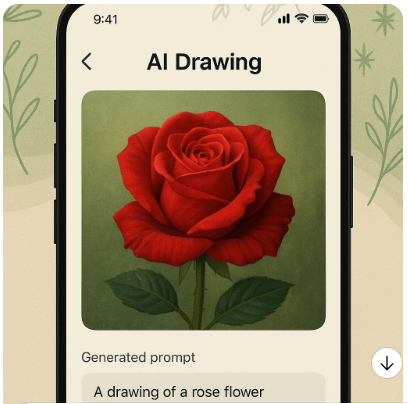
I’m not gonna lie, this whole “drawing AI” thing feels like the internet decided overnight that humans shouldn’t draw anymore. Like one day I’m doodling on scrap paper, smudging pencil on my sleeve, and the next day, TikTok’s flooded with people uploading stick figures and getting these insane, full-blown illustrations back in five seconds. And yeah, I rolled my eyes at first—because obviously AI can’t feel the way you do when you’re sketching at 2 AM, right? But then I tried one. And suddenly my janky little cat doodle turned into this moody, Studio Ghibli-looking thing with perfect lighting and fur textures. I’m not even sure if I was proud or embarrassed. Probably both.
Now, in 2025, “drawing AI” isn’t just some toy. It’s everywhere. Comic book artists are using it to block panels faster, logo designers are churning out 20 versions in the time it takes to pour coffee, and people are literally making 3D toy models from napkin sketches. Google’s “Nano Banana” style trend? Yeah, that happened. Everyone wanted to see their pets turned into tiny, yellow, banana-shaped action figures. And then ByteDance dropped Seedream, and suddenly the AI stopped spitting out weird five-fingered nightmares and actually gave you consistent characters. Like your OC can finally look like the same person in every shot—wild.
So yeah, people are obsessed because it’s stupid fast, kinda magical, and, honestly, a little terrifying. You can scribble something half-asleep, toss it into an AI art generator, and get back a poster-ready design. Sketch-to-image tools? They’re getting so good it’s… unsettling. And maybe you’re skeptical (I was too), but once you see your own lazy doodle come back looking like a polished concept piece, you’re not gonna care. You’ll just keep hitting “generate” like the rest of us.
2) What is “Drawing AI”? (Plain English + quick glossary)
Okay, so “what is drawing AI?” I’ve been asked that a bunch, and honestly, the first time I tried one of these AI drawing things, I felt like I was cheating. Like, I scribbled this lopsided stick figure—looked like something a bored toddler would make during a family Zoom call—and boom, the AI turned it into this moody, dramatic illustration that looked like I’d been to art school. Spoiler: I haven’t.
So yeah, drawing AI is basically software (apps, sites, whatever) that takes prompts or sketches and makes real art out of them. You type stuff in—“a fox in a hoodie drinking bubble tea, neon city background”—and it spits something out in seconds. Or you upload a crappy doodle, and suddenly it’s polished, shaded, and has glowing eyes. There’s fancy tech behind it—diffusion models, control nets, CFG scales, negative prompts—but you don’t need to understand all that to use it. Half the time, I’m just guessing settings until it stops giving my characters seven fingers.
Is AI drawing the same as AI art? Kind of, but also not. AI art feels like this big umbrella term for anything AI-generated, like abstract paintings or surreal landscapes nobody drew. Drawing AI leans more into sketches, comics, clean linework—the stuff illustrators obsess over. Think of it like: AI art is “look at this pretty picture,” AI drawing is “make my actual drawing better or match a style.”
And do you need to know how to draw? Nah. I mean, it helps if you understand basics, like composition or color theory, but honestly, you can come in with zero skill. I started with prompts because I was scared of showing my terrible sketches to anyone (even a machine, lol). Now I’ll upload notebook doodles just to see what it does. Sometimes it’s amazing, sometimes it’s nightmare fuel. But that’s the fun of it.
So yeah, “what is drawing AI?” It’s like having a hyper-speedy, slightly chaotic art buddy. It won’t replace actual artists (AI still messes up hands all the time), but it makes experimenting way less scary. And maybe that’s the point—drawing without the pressure of being “good.”
3) How it works (text-to-image, image-to-image, sketch-to-image)
You ever stare at your own shaky pencil sketch at 2 AM and think, “Man, this would look so cool if I wasn’t so bad at drawing hands”? That’s kinda where “AI sketch to image” magic kicks in. It’s not some wizardry — well, okay, it feels like wizardry the first time. You scribble a lopsided cat, scan it, upload it into something like Stable Doodle or Picsart SketchAI, and boom. Suddenly, your messy lines morph into this polished, moody illustration like you actually knew what you were doing.
So, here’s what I figured out messing with it way too long last summer: there are three main “modes” everyone talks about — text-to-image, image-to-image, and sketch-to-image. Text-to-image is the “tell me a story” one — you type “anime wizard on a neon skateboard” and it just… spits something out. Fun, but chaotic. Image-to-image is like, “I already drew this ugly guy, make him hot,” because it takes your picture and remixes it. And sketch-to-image? That’s my favorite. It’s like a coloring book that actually cares about your lines.
I messed this up at first. I thought uploading a drawing meant it’d just trace it, but nah, you gotta tell it exactly what you want. “Clean ink lines, soft shading, studio ghibli vibe” — stuff like that. Stable Diffusion’s ControlNet model is the real MVP here. It locks onto your lines so it doesn’t turn your cat into a mutant raccoon. You can crank denoise strength low to keep your sketch vibe or push it high for a full glow-up. Learned that the hard way when my comic panel turned into something… very NSFW.
And reference images? Game changer. I used to redraw characters from scratch every panel, and they’d all look like distant cousins. Now I just feed AI the same face/headshot as a reference, and it keeps everything consistent. That’s why people are obsessed with “reference-based consistency.” It feels like cheating, but also, screw it, it’s efficient.
Oh, and upscalers — you’ll need those. Because the default render might look fine on your phone but terrible on a poster. Most apps (Fotor, Canva, Picsart) have a 2x or 4x upscaler baked in, or you can run it through a separate one. Honestly, that’s when I realized I didn’t need to hire a freelancer to polish my doodles. AI just… did it. Kinda humbling, kinda freeing.
So yeah, if you’re sitting there with a sketchbook full of questionable dragons or a logo you doodled in math class, these tools will turn that into something portfolio-worthy. Just be ready to tweak prompts, redo things, curse at it a little — it’s not magic, but it feels close.
4) Quick Start: Beginner workflow
Alright, so, this is for anyone who just downloaded some AI drawing app, stared at it for like… fifteen minutes, and thought, oh my god, why are there so many buttons. Been there. I remember the first time I opened Stable Diffusion on my laptop—I was expecting a magic “make pretty art” button. Instead, it looked like a plane cockpit. I closed it and went back to doodling in my notebook.
But okay. Here’s the bare minimum to actually get something out of this thing, step by step.
Step 1: Open the damn thing and pick a canvas size.
Don’t overthink it. The setting is usually called aspect ratio. Square (1:1) is safe if you’re not sure. Landscape is good if you’re imagining posters or wallpapers. I used to stress over it and then realized I was just wasting time.
Step 2: Type words like a caveman.
This is the “prompt” box. You don’t have to write a Shakespeare monologue—start simple. Like:
“anime-style cat, sitting on windowsill, soft pastel colors.”
Add a negative prompt section if it’s there. That’s where you write stuff like “no extra arms, no blurry face.” It’s basically telling the AI what not to do. Which… is hilarious because it still sometimes does it anyway.
Step 3: Hit generate, hate your first result, tweak settings.
That’s normal. Play with denoise strength (lower for clean lines, like 0.3–0.5) and sampler (each one feels like a different artist’s hand). I swear I spent two hours once just switching samplers. Felt like changing fonts in Word.
Step 4: Lock it in with a seed.
Once you like something, note the seed number. That’s the DNA of your picture. Saves you from “where did that perfect cat drawing go??” panic later.
Step 5: Upscale and export.
There’s usually an “upscale” button. Use it. Makes your drawing sharper. Ignore the AI errors you’ll see up close—zoom out, nobody notices. Save it, post it, pretend you knew what you were doing.
Honestly, learning how to draw with AI is 90% just pushing buttons and laughing at the monstrosities it spits out before it finally nails something. Don’t obsess over perfection; mess with it like you’d mess with stickers in a photo app. Screenshot everything, especially the weird ones—they’re gold later.
Next time, I’ll tell you how to stop the AI from giving every character six fingers. (Spoiler: negative prompts and patience.)
5) The 2025 toolscape: best AI drawing & sketch-to-image tools (comparison table)
Alright, so this part of the blog is supposed to be a nice, polished “comparison table of the best AI drawing tools,” right? But honestly, every list I saw on Google feels like the same five screenshots, two-paragraph blurbs, and some affiliate links pretending to be insight. So I’m just gonna talk to you like I’d tell a friend who texted me: “Bro, which AI app should I use to make my doodles look like a Pixar poster?” Because I’ve been down that rabbit hole, and I’ve lost more hours to these apps than I’d like to admit.
You’ve got Midjourney—the artsy cousin who smokes clove cigarettes and refuses to make a proper UI. It’s gorgeous if you have time to babysit Discord commands. Amazing for stylized stuff, but forget accuracy. Text on posters? Nah, it’ll spell “Coca-Cebl” instead of Coca-Cola.
Then Ideogram shows up like, “Hey, I actually know how to write words!” And it does. If you want logos or those aesthetic Pinterest-style posters with perfect typography, this is your buddy. I used it to mock up a fake coffee shop flyer once. Looked real enough to fool my mom.
Canva and Picsart are… you know that friend who doesn’t know much but has every tool in their backpack? Canva’s “Sketch to Image” is fine if you’re already there making Instagram posts. Picsart’s SketchAI is honestly fun. Like, upload your ugly notebook scribble, and it spits out a shiny version. It won’t win awards, but it makes you feel talented.
Recraft is for people who actually care about vector graphics (logos, clean icons). It’s not as flashy as Midjourney, but it’s precise. Like a perfectionist friend.
Fotor and DeepAI? Free-ish, but you’ll hit credit walls fast. Great if you just wanna mess around. Craiyon is literally free but… the outputs look like AI from 2018. I use it when I want to remember what nightmares look like.
And then there’s Stable Doodle. This one blew my mind. You scribble like a five-year-old, upload, and it’s like, “Ah yes, here’s your flawless anime character in a cathedral.” The catch is you need a decent PC or patience for online services.
Here’s a rough table because people love tables:
| Tool | Best For | Text Accuracy | Free Tier? | India Pricing (approx) | Sketch-to-Image? | Commercial Use |
|---|---|---|---|---|---|---|
| Midjourney | Artsy, stylized concept art | No | No | ₹2,500/mo+ | Limited | Allowed (read TOS) |
| Ideogram | Posters, logos, text art | Yes | Yes (low res) | ₹0–₹1,200/mo | No | Yes |
| Canva AI | Social posts, quick edits | Decent | Yes | ₹499/mo | Yes | Yes |
| Picsart SketchAI | Sketch-to-image fun | Decent | Yes (credits) | ₹699/mo | Yes | Yes |
| Recraft | Logos, vectors, clean design | Yes | Yes | ₹0–₹1,000/mo | No | Yes |
| Fotor AI | Casual edits | Meh | Yes (credits) | ₹299/mo | Basic | Limited |
| Craiyon | Free chaos | LOL no | Yes | Free | No | No |
| DeepAI | Simple experiments | No | Yes | Free | No | No |
| Stable Doodle | Precision sketch-to-art | N/A | Some | Free via sites | Yes | Yes |
If you’re just starting out, don’t pay for Midjourney right away unless you’re chasing clout. Canva or Picsart is chill, especially if you’re on your phone in a café, half-asleep. Ideogram is your secret weapon for text-on-image posters—seriously, it’s wild. Stable Doodle is my personal obsession when I want to pretend I’m a comic book artist.
But, small PSA: read the Terms. Most of these let you use outputs commercially, but some slip in clauses about attribution or data training. Don’t be me, who found out too late that I’d used a “personal use only” image on a client’s poster. Awkward emails.
Anyway, pick one, mess around, don’t overthink it. AI art isn’t about getting it perfect on the first try. It’s like cooking—expect a few disasters before something edible comes out.
6) Prompts for drawing styles (with copy-paste templates)
You ever stare at a blank prompt box for like ten minutes straight because your brain is trying to decide between “line art in anime style” or “gothic cathedral in cyberpunk colors” and then you give up and type “pretty drawing please” and… it spits out something that looks like a coloring book from hell? Yeah, that was me last Tuesday. AI drawing prompts are like… ordering food at a new restaurant. You can just say “burger,” sure, but then you’re mad when you get a dry patty with mystery sauce. You gotta ask for what you want.
So, I’ve started hoarding prompts like a gremlin. Sticky notes, Google Docs, random screenshots—stuff that works. Clean line art? You can’t just say “clean.” You need details:
“Minimalist line art, black ink, thick outlines, no shading, white background, centered composition, vector style, 8k resolution, high contrast.”
That’s one I used for a tattoo idea. Looked so sharp it felt illegal.
And for manga? I go all out:
“Manga panel, dramatic angle, speed lines, cross-hatching, dynamic pose, detailed hair strands, cel-shaded, 1990s shonen vibe, printed texture overlay.”
Throw in “screentone pattern” if you’re a nerd like me.
Oh, posters. God. The text is always cursed. You ask for “HELLO WORLD” and it gives you “HELLA WURD.” Ideogram is the only one I’ve seen nail typography. I just write:
“Graphic poster, bold sans-serif title text ‘HELLO WORLD’, sharp typography, vibrant color blocking, professional print layout.”
Works… most days.
Also, weird tip: use camera words. Like, instead of “draw a tree,” say “close-up shot, low angle, dramatic lighting, cinematic composition.” The AI suddenly thinks it’s Spielberg. And color theory helps too—words like “complementary palette,” “muted tones,” or “neon gradients” actually change the vibe.
Here’s a small cheat sheet (copy-paste, go wild):
- Comic ink: “Black ink, thick brush strokes, halftone texture, high-contrast lighting, gritty comic book style.”
- Flat illustration: “Flat vector illustration, simple geometric shapes, solid colors, minimal details, clean background.”
- Cyberpunk: “Futuristic cityscape, neon lights, dark shadows, reflective puddles, glowing signage, wide shot.”
- Gothic: “Dark gothic cathedral, ornate details, moody fog, candlelight, intricate stained glass, overcast.”
Anyway, don’t overthink it. I wasted months tweaking prompts like they were passwords to some secret club. Half the fun is when the AI gives you something totally wrong but weirdly cool. Save your best ones. Name them like mixtapes. And remember: “clean line art” isn’t a vibe; it’s a shopping list. Write it like you’re bossing around a robot… because you literally are.
7) From paper to polished: turning your sketch into art
Alright, so… turning a shaky pencil sketch into something that looks like you actually know what you’re doing. Yeah, I’ve been there. I still have this old notebook full of half-baked characters I drew in class, smudged pencil lines, eraser crumbs stuck in the spine. I remember scanning one, thinking “I’ll just clean it up real quick.” Two hours later, it looked like a melted sock puppet. That’s when I finally gave in and tried those “turn sketch into image AI” things. I was skeptical. Felt like cheating. It also felt… kinda magical?
The first time I threw one of my drawings into Picsart’s SketchAI, I legit sat there staring at my screen because it somehow made my messy lines look intentional. Like I had a style. It even added shading. I didn’t even ask for shading. And then I learned about these settings—fidelity, denoise, style strength. Big words for “do you want it to actually look like your sketch or turn it into some generic Pinterest illustration?” Pro tip: crank fidelity high if you want to keep your linework. If not, it’ll happily redraw your entire thing and call it a day. Canva’s Sketch-to-Image is a bit friendlier if you’re lazy (I am), especially on mobile. You snap a photo of your doodle, click a style, and it spits out a “finished” drawing. It’s like… cleaning your room by shoving everything under the bed. Looks good from a distance.
The weirdest part is trusting it. You draw this crooked flower, and AI says, “Cool, I got it,” and suddenly it’s a bouquet. Sometimes it nails it, sometimes it adds limbs that don’t exist. I had one doodle where it decided the bird I drew should have four wings. I kept it. It was cooler that way. Stable Doodle is great if you want more control, but also—it’s like reading IKEA instructions. There’s “controlnet,” “scribble models,” all this techy stuff, but honestly, once you mess around, it makes sense. And you start to feel this weird power, like, oh, I can actually make this look like something I’d hang on a wall.
And yeah, if you’re just doodling on your phone during lectures or at work, these apps make you feel like an artist without the guilt trip. Take a crappy photo of your notebook, upload, tweak style strength, boom. It’s not cheating. It’s… I don’t know, collaborating with a robot that actually respects your smudges. Which is kinda nice.
8) Pro workflow & consistency (reference images, brand style, batches)
Okay, so… keeping style consistent in AI drawings. Let me tell you, I fought with this for weeks. Like, I’d make this cool little character—big hoodie, messy hair, that awkward smile I can’t even draw myself—and every time I’d try to get a second image? Boom. Suddenly she’s in a ball gown or her head is twice the size. AI is a brat like that.
Anyway. The trick? Reference images. Seriously, upload your original sketch or finished art every single time you generate something new. Most tools (Seedream, Stable Diffusion with ControlNet, whatever you’re using) have this little “use reference” or “image-to-image” toggle. I used to ignore it because I thought prompts were enough. Nope. Without a reference, it’s like asking a stranger to “draw my friend” with no photo. You get some random person with extra fingers.
And here’s a thing nobody tells you: keep your seed numbers. That random “12345678” in your settings? That’s your magic sauce. Lock it, reuse it, tweak one variable at a time. It’s like… baking. Mess with everything and you’ll never know why your cookies turned green. Same with LoRAs (little style models). Train or grab one that matches your vibe, load it, and boom—you can crank out a dozen versions of your hoodie girl without her suddenly growing a third arm.
For brand stuff, it’s even dumber-simple but also stressful. Upload your logo colors into a “brand kit” if your tool has one (Canva makes this stupid easy, Stable Diffusion? Not so much). Save hex codes, save font prompts (“Futura Bold, 90s retro”) and just paste them in every prompt. Consistency is boring, but clients notice when their red isn’t their red.
And batching? Don’t do one image at a time like I did at first. Queue like 8–10 at once, but only if your credits allow it. Then throw away the ugly ones, because half of them will be cursed. AI is chaos. You wrangle it by making a system: same seed, same LoRA, same prompt skeleton, and reference images locked in every run.
So yeah. That’s how you keep style consistent. Not sexy. Just messy repetition, obsessive note-taking, and a healthy hatred of “randomness.” I still have a folder full of terrifying rejects that haunt me. But the good stuff? That’s what makes it worth all the fiddling.
9) Legal, licensing & ethics (what you can/can’t do)
You ever have one of those moments where you’re like, “Oh cool, I’ll just draw something in this AI app, slap it on a t-shirt, make a little side cash,” and then you read the terms of service and it’s like falling into a legal quicksand pit? Yeah. I’ve been there. I once uploaded this goofy doodle of a cat wearing sunglasses into an AI generator, spent way too long tweaking prompts, got the perfect retro vibe… and then someone in a Discord group casually mentioned I didn’t technically own it. Like… excuse me? It’s my cat, my sunglasses, my caffeine-fueled brain, but apparently, because the AI was trained on some massive dataset of who-knows-what, I was now in this weird gray zone where selling my own design could get me in trouble.
So, is AI drawing legal? Well, kinda. It’s not illegal to make it. You can generate as many cursed anime portraits as you want. The mess starts when you try to use or sell it. Every tool has its own fine print—Canva’s more chill, Picsart literally has disclaimers about the “complex and evolving legal landscape,” and Fotor’s like, “Sure, sell it, but don’t blame us if Mickey Mouse lawyers come for you.” And don’t even get me started on likeness rights. If you accidentally make something that looks like a celebrity… yeah, that’s a lawsuit waiting to happen.
Here’s a quick cheat sheet I wish I’d had back then:
| Tool | Commercial Use? | Notes |
|---|---|---|
| Canva | Yes (Pro plan safer) | Some templates/fonts require attribution. |
| Picsart | Yes, but “legal risks exist” | Warns users about copyright ambiguity. |
| Fotor | Yes | Terms say you can sell, but no guarantees. |
| Craiyon/DeepAI | Yes, non-exclusive | No trademark checks, watermark removal optional. |
And that’s the thing: you can sell AI drawings, but you don’t actually “own” the underlying AI model or the training data, so your art is more like… a remix of the internet’s collective brain. I mean, half of this stuff is trained on images scraped from random artists who never signed off. Makes me feel weird, honestly.
So yeah, make your art, print your stickers, whatever. Just know the rules are flimsy, and if you’re serious about building a brand, maybe keep AI work separate from your original pieces. Or at least read the terms before you spend three hours perfecting a dragon logo that you can’t legally trademark. I learned that the hard way.
10) Monetization ideas & real use cases (designer, student, marketer)
You know that weird moment when you’re staring at a messy AI doodle on your screen, like, “what am I even doing with this?” Yeah, I had that last week. Scribbled a half-baked dragon on my tablet, tossed it into an AI model, and suddenly it looked like a polished book cover. And I sat there thinking… okay, I could probably make money with AI drawings, right? But where? And would anyone actually buy this?
Turns out… yeah. People pay for this stuff. I mean, Etsy is full of AI-generated art. Posters, stickers, phone wallpapers, T-shirts. Half the shop owners? They don’t even admit it’s AI. And I get it—there’s a weird guilt factor. But if you clean up your files, make mockups (like, throw that “dragon” on a hoodie in Photoshop or Canva), you look legit. That’s what sells. Not your raw art, but the idea of someone picturing themselves owning it.
The prep? Ugh. Took me forever to figure this out. DPI matters (300 if you’re printing, trust me, I learned after my first mug order came out blurry). Bleed margins? Yeah, I ignored those once and half my design got chopped off on a tote bag. Cute. Now I just overcompensate—huge margins, safe zones. Everything’s in SVG or high-res PNG because vectorization means no surprises when a client slaps it on a billboard.
And look, it’s not just Etsy. Marketers need AI concept art for campaigns, book authors want cheap covers, indie game devs need storyboards yesterday. I once charged fifty bucks for a “quick sketch” that took me thirty minutes because, well, AI did 80% of the work. Felt like cheating, but they didn’t care. They just wanted it fast.
So yeah. Sell prints. Offer branding illustrations. Do custom portraits. Slap your stuff on Redbubble or Printful. Or pitch it as “concept art workflow” for agencies that don’t have time to hire an actual illustrator. AI is a shortcut, not a crime. And if you’re smart about licensing (read the fine print—some tools don’t let you resell, which is ridiculous but whatever), this stuff pays.
Anyway, if you’re broke and sitting on a laptop, this is probably one of the easiest ways to turn weird midnight sketches into rent money. Might even be fun. Or stressful. Both. Probably both.
11) Troubleshooting: fix hands, text, anatomy, noise
Alright, so, fixing AI hands. God, this one’s been haunting me. I remember the first time I tried to make a comic panel with Stable Diffusion… the guy had seven fingers, like some kind of alien pianist. I sat there zoomed in, dragging that inpainting box over and over, thinking “why can’t you just… draw… a hand?” And then I realized, the AI’s not “bad” at hands. It just doesn’t care. It’s chewing pixels, not anatomy textbooks.
So here’s what I’ve learned the stupid, slow way:
- Negative prompts are your friend. Write “extra fingers, deformed hands, warped anatomy” like you’re scolding a dog. It helps.
- CFG scale and steps—don’t crank them too high. I thought more steps meant perfection. Nope. More weirdness.
- Linework: If your stuff looks muddy, try ControlNet (lineart or scribble) with a clean outline. And please, for your sanity, upscale at the end. That alone fixed like half my blurry disasters.
- Text: This one’s brutal. Ideogram’s the only model that actually spells. If you’re dead set on Stable Diffusion, use an inpainting pass letter by letter. Yes, it’s hell.
I mean, honestly, I’ve spent hours painting out teeth that looked like Tic Tacs. Sometimes the fastest “fix” is starting over with a tighter prompt and a sketch guide. It feels like cheating, but so does everything else AI does.
And yeah, if your picture looks like it got microwaved, lower denoise strength. Sharpen at the end. Or don’t. I’ve printed posters where the “mistake” became style.
Anyway, I still catch myself zooming in on fingers first, like a nervous tic. You’ll get there. It’s not magic; it’s just wrangling a messy toddler with a paintbrush.
12) Best free & mobile apps for AI drawing (quick picks)
Alright, so. You want to know which AI drawing apps are free, right? Like… actually free, not “free for five clicks then cough up your card info.” I’ve wasted too many hours on that nonsense, so here’s me just spilling what I’ve learned.
Craiyon’s the first one that comes to mind. It feels like the weird cousin of all the “fancy” AI generators. No account, no drama. You just type your thing, wait a bit, and boom—images. They’re grainy sometimes, like an old VHS screenshot, but for free? Whatever. I still use it when I don’t feel like logging in anywhere.
Then there’s DeepAI. It’s… fine. You can get stuff without logging in, but if you want bigger images or faster results, they’re like, “Hey, credits please.” Not a scam, just that sneaky “free tier” game everyone plays now.
Picsart’s free tier is actually better than I expected. I used it on my phone while sitting in a bus stop last week (terrible signal, freezing wind, my fingers numb). The app’s messy—too many buttons—but the AI drawing part works. You get a handful of free credits a day. Just don’t go wild.
And Canva… oh man. Canva’s like that reliable friend you didn’t appreciate in school. It does everything. Posters, social media junk, and yes, AI art. The mobile app’s surprisingly solid. But again, there’s a “free,” and then there’s “we’ll watermark this unless you pay.” I swear every time I export an image, I’m praying it doesn’t slap a giant Canva logo across the middle.
So yeah, if you want truly free with zero hassle, Craiyon’s the chillest. DeepAI is close. Picsart and Canva are more polished but make you jump through credit hoops. It’s basically pick your poison: ugly-but-free vs. smooth-but-limited.
Anyway, I’ve tried all these while half-asleep, in train stations, and once while hiding in a bathroom during a party because socializing is hard. They all work. Some better than others. But at least you know where the traps are now.
13) FAQ
Is AI drawing cheating or a skill?
I mean… depends who you ask, right? I remember showing my first AI doodle to a friend who’s been sketching for ten years. She rolled her eyes so hard I thought they’d fall out. But then she started using it for color studies because—surprise—it saves time. I don’t think it’s cheating, honestly. It’s like Photoshop. A tool. You still need taste, an eye for detail, the patience to tweak prompts until your brain melts. If anything, it’s a weird new skill no one knows how to grade yet.
Can AI copy my drawing style from references?
Yeah… sorta. Upload a few samples, feed it enough data, and it’ll spit something “you-ish.” But it’s not perfect. I tried training it on my old sketchbook, and it made everything look like sad anime ghosts. Cool, but not “my style.” So yes, AI can mimic, but it also… doesn’t quite “get” you. Yet.
Which AI is best for manga line art?
I’ve hopped between Midjourney, Stable Diffusion with ControlNet, and some random niche ones from Reddit. Midjourney’s smooth but hates fine lines. SD with “lineart” models works better if you’re willing to fight with settings for hours. If you’re lazy (like me on Tuesdays), there’s Clip Studio Paint with AI assists—it’s built for comic people. Honestly, you’ll end up using a mix. Sorry.
How to get AI to print text correctly on posters?
Oh man. This one. You’d think typing words wouldn’t break a model. Nope. Midjourney spells like a toddler. The only tool I’ve seen nail it is Ideogram—it’s freaky good at posters, logos, all that. I made a fake coffee shop flyer that looked like a real brand. Scary stuff. Use Ideogram, save your sanity.
What’s the best free AI drawing app with no login?
Craiyon. It looks like it was designed in 2012, but it works. DeepAI too, if you don’t mind… questionable quality. Both are free, no sign-up, no drama. Good for messing around at 2 AM when you don’t want to hand over your email again. Don’t expect masterpieces, though.
14) Conclusion + CTA
I’ll be real—writing this whole “drawing AI” thing has been like… sitting in my room at 2 AM staring at this dumb little sketch I made on a crumpled notebook page, thinking, wow, some robot out there could make this look like concept art for a Netflix show in 30 seconds. That’s wild. And kinda humbling. And also? It’s a little addicting once you see your messy doodle turn into something beautiful. I mean, I’m not saying I cried over a drawing of a cyberpunk toaster, but… maybe I did.
Anyway, if you’ve made it this far, I’m guessing you’re curious. Or maybe you’re skeptical. Or bored. Doesn’t matter—you’re here. So here’s what I’ve got for you: I made this dumb little prompt template pack because I got tired of typing the same stuff over and over. There’s also a comparison sheet (you know, for when you’re halfway through making a masterpiece and the app tells you you’re out of credits). Grab those, save yourself the headache.
And hey… subscribe or don’t. I’m not your mom. But if you do, maybe I’ll send you more weird tips or that sketch I keep talking about. You’ll see how bad it was before AI “fixed” it.
Cool. Go make something. Even if it’s ugly first. Especially if it’s ugly first.
